How to Leave a Class in Google Classroom: A Quick Guide
Whether the semester just wrapped up or you accidentally clicked “Join” on the wrong digital syllabus, figuring out how to leave a class in Google Classroom is a breeze. Navigating your virtual dashboard shouldn’t feel like a puzzle, but Google’s interface sometimes hides simple actions behind a few extra clicks.
In this straightforward guide, we will walk you through the exact steps to unenroll from a course as a student, archive a class if you are an educator, and troubleshoot any stubborn permissions along the way. Let’s dive in and clean up that digital workspace!
Why Clean Up Your Google Classroom Dashboard?
An organized digital workspace does wonders for your productivity. If you are juggling multiple virtual classes, an overcrowded dashboard can lead to missed assignments, unnecessary notifications, and plenty of daily stress.
- Better Focus: Removing old or inactive classes keeps your main screen clutter-free.
- Streamlined Notifications: Stop getting alerts for assignments and announcements from classes you no longer attend.
- Easier Navigation: Find your active coursework instantly without scrolling past outdated subjects.
How to Leave a Class as a Student
If you are officially done with a course or dropped it during the add/drop window, removing it from your student portal takes less than a minute. Before you unenroll, keep in mind that you won’t be able to access your past assignments or files unless your teacher re-invites you or the files remain in your Google Drive folder.
Step-by-Step Unenrollment Instructions
- Open Google Classroom: Head over to classroom.google.com and log in with your school account.
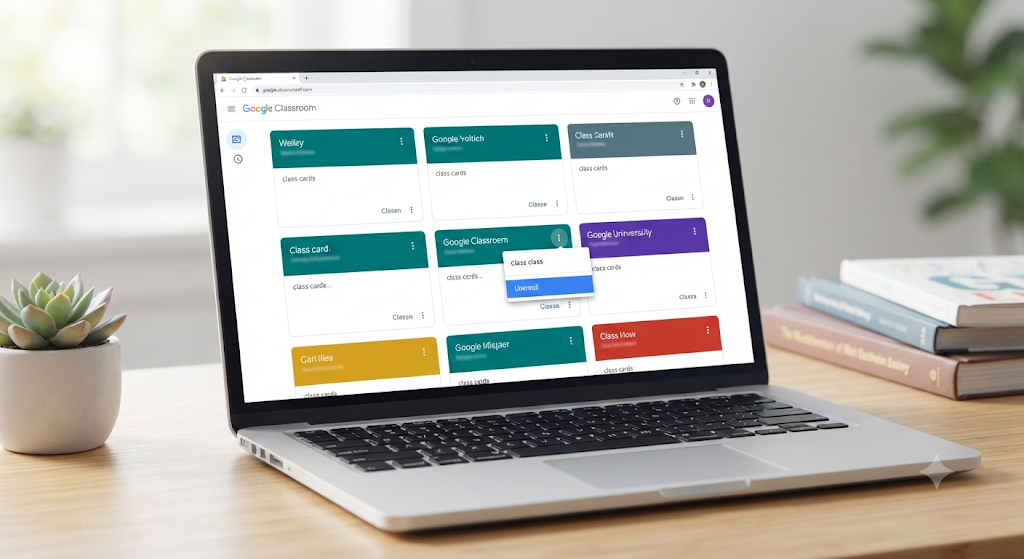
- Find Your Class Card: Locate the specific class you want to exit on your main dashboard.
- Click the Menu Icon: Look at the top right corner of the class card for the three vertical dots (more options menu) and click it.
- Select Unenroll: Click on Unenroll from the drop-down menu.
- Confirm Your Choice: A pop-up window will ask you to confirm. Click Unenroll one final time to remove the class permanently from your view.
Note: If the “Unenroll” button is greyed out or missing entirely, your school administrator may have restricted student unenrollment permissions. In this case, you will need to contact your teacher or IT admin to remove you from the roster.
How Teachers Can Archive or Delete a Class
If you are an educator wrapping up the school year, the process looks a little different. Teachers cannot simply “leave” a class they created; instead, they must archive or delete it. Archiving is usually the best practice because it saves all student work and materials for future reference while removing it from your active dashboard.
Archiving vs. Deleting Classes
- Archiving: Hides the class from your active view and moves it to the “Archived Classes” folder. You and your students can still view past materials in Google Drive, but no new changes can be made until you restore it.
- Deleting: Permanently erases all assignments, posts, and student grades. Use this option only if you are 100% sure you will never need the content again.
Steps to Archive a Class
- Navigate to your Google Classroom dashboard.
- Click the three vertical dots on the top right of the class card.
- Select Archive.
- Confirm by clicking Archive in the prompt window.
To permanently delete an archived class, open your main menu (three horizontal lines on the top left), click Archived classes, locate the class card, click the three dots, and select Delete.
Frequently Asked Questions
Can I leave a Google Classroom class on the mobile app?
Yes! Open the Google Classroom mobile app on your iPhone, iPad, or Android device. Tap the three dots on the class card, select Unenroll, and confirm.
What happens to my homework and files if I unenroll?
Your assignments and submitted files remain safely stored in your school’s Google Drive folder under a designated “Classroom” folder. However, you will lose direct access to the teacher’s stream and class comments unless you rejoin.
Why can’t I see the “Unenroll” option on my screen?
If the option is missing, it is likely locked by your school district’s Google Workspace administrator. Reach out to your school’s IT support or the class instructor to manually drop you from the roster.
Can I rejoin a class after I leave it?
You can easily rejoin if you have the original class code or a fresh invite link sent by your instructor. Keep in mind that your previous submissions will need to be re-uploaded if they were wiped from that specific classroom stream.
Wrapping Up
Knowing how to leave a class in Google Classroom helps you stay organized, reduces digital clutter, and keeps your notifications relevant. Whether you are a student clearing out an old semester or an instructor archiving a finished course, these simple steps will have your dashboard looking pristine in no time.
Ready to tackle more digital organization tips? Check out our other guides on optimizing your Google Drive storage or mastering productivity apps for the modern classroom!
Also Visit my Education Website: Gimkit
Related Article

What Is SimpCity? Everything You Need to Know

Track Air India Express Flight Status Easily